Windows 11 vs Windows 10 The Key Differences: Which Should You Buy?
Introduction
I've spent several months living between two machines: one running Windows 10 that I bought two years ago, and a newer laptop I upgraded to Windows 11 shortly after it launched. Over that time I used both for everyday tasks — writing, photo editing, web browsing, meetings, and gaming — so I have a practical sense of where Windows 11 actually improves the experience and where Windows 10 still holds value. In this article I'll walk through the meaningful differences I noticed, the concrete pros and cons of each, and a buying guide to help you decide which is the better fit for your needs.
My setup and how I tested them
To be transparent: my Windows 10 machine is a three-year-old ultrabook (Intel i5, 16GB RAM, 512GB SSD) that I kept on stock Windows 10 with routine updates. The Windows 11 machine is a recent laptop (Intel i7 / AMD Ryzen equivalent, 16–32GB RAM, NVMe SSD) that shipped with Windows 11 and has had the feature updates Microsoft released in the last year.
I tested common scenarios over several months: boot times, day-to-day responsiveness, battery life in mixed use, gaming (modern titles with DirectX 12 features), multitasking with multiple monitors and virtual desktops, and interactions with legacy apps I still use daily. Where I mention specific experiences, those came from repeatedly using both systems for real tasks rather than synthetic benchmarks.
Design and user interface: the first impression
What I found first was very visible: Windows 11 feels like a fresh coat of paint. The Start menu is centered by default, app icons have more breathing room, corners are rounded, and animations are smoother. I appreciated the calmer, less cluttered look — it made my desktop feel more modern and focused. The new system fonts and spacing are subtle but noticeable after a week or two.
On the downside, I noticed early annoyances that bothered me as a daily user. The taskbar in Windows 11 is less customizable: you can't move it to the side or top (something I did occasionally in Windows 10 for vertical monitor setups), and certain behaviors I relied on — like dragging files onto app icons on the taskbar to open them — were missing at launch. Microsoft has been iterating, but I still miss the granular customizations you can do in Windows 10.
Start menu, File Explorer, and settings
Windows 11's Start menu is simplified (no live tiles), which I liked because it reduced visual noise. The pinned app grid and recommended section make it quicker to find frequently used programs. However, if you were used to arranging live tiles in Windows 10 for quick glanceable information (like weather or news), you'll miss that shortcut surface.
File Explorer received a light refresh in Windows 11: cleaner icons, more consistent context menus, and the addition of features such as tabs (handy when I have several folders open). The Settings app continues to replace Control Panel for most tasks; I found Settings in Windows 11 to be more organized. That said, certain advanced settings and legacy control panel pages still live in the old interface, which created small friction when I needed deep system tweaks.
Performance and battery life
In my experience, raw day-to-day performance felt slightly snappier on the Windows 11 laptop — faster wake-from-sleep, marginally quicker app launches, and smoother window animations. On comparable hardware the differences were not dramatic; both systems were very usable. Where Windows 11 stood out for me was in multitasking: Snap Layouts and snap groups help keep windows organized, and I ended up using them far more than the classic snap in Windows 10.
Battery life varied by machine more than by OS. On my newer hardware, Windows 11's power management and scheduler optimizations appeared to eke out an extra 30–60 minutes during mixed-use (web, video, writing). On the older ultrabook, however, Windows 11 wouldn't have been an option without enabling TPM and UEFI changes — and Windows 10 still gave me full-day battery life on that machine. So if your laptop is older, Windows 10 may be the practical choice for now.
Discover deals on Electronics — updated daily.
Shop Amazon →Gaming and multimedia
Gaming was one of the most noticeable areas where Windows 11 offered concrete benefits for me. Features like Auto HDR and DirectStorage (when supported by the hardware and the game) reduced load times and improved visuals in titles that adopted them. On my Windows 11 machine I saw faster texture streaming and shorter level load times in a couple of modern games that implemented DirectStorage properly.
That said, not every game benefited immediately. Some older games and tools still need compatibility tweaks or driver updates. In Windows 10 I had a longer history of stable drivers and fewer compatibility surprises, which is important if you rely on older titles or niche peripherals.
Productivity features: Snap layouts, virtual desktops, and widgets
One thing I appreciated in daily work was Snap Layouts: hovering over the maximize button and choosing a layout sped up how I arranged windows across two monitors. I started keeping a couple of snap groups that matched my work modes — research and writing, or chat and video call — and switching between them feels fluid in Windows 11.
Virtual desktops are a bit more refined as well; switching between desktops preserves more window states which I liked. Widgets are present but felt inconsistent: some widgets were useful (calendar, tasks), while others leaned more like a news feed that I didn't open regularly. In Windows 10 I relied on simpler toolbars and third-party utilities; Windows 11's built-in tools reduced the number of add-ons I needed.
Compatibility, drivers, and enterprise considerations
Compatibility is where my real-world headaches came. When I first attempted to move an older workstation to Windows 11, some vendor drivers weren’t ready and a specialized scanner I use required an older driver that hadn’t been updated. For that device I stuck with Windows 10 until the vendor released a compatible driver. If you have specialized hardware or legacy business software, Windows 10 provided a safer, more predictable platform during my transition period.
Security advances in Windows 11 (TPM 2.0 requirement, virtualization-based security improvements) are real advantages for new hardware. I noticed fewer prompts and a smoother Windows Hello setup on the Windows 11 machine, and the OS felt more locked down by default. For enterprise users, Microsoft’s added security layers are a strong reason to standardize on Windows 11 over new devices.
Updates and lifecycle
One practical reality I ran into: Windows 10 reached end-of-support in mid-2025, which meant I had to think about whether to stay on an unsupported system for older machines. In my case, keeping the old laptop on Windows 10 after the support end date felt risky for internet-connected tasks unless I isolated it from sensitive workloads. The Windows 11 laptop continues to receive feature updates and security fixes, and I appreciated the smaller, more modular updates that felt less disruptive than some older cumulative updates on Windows 10.
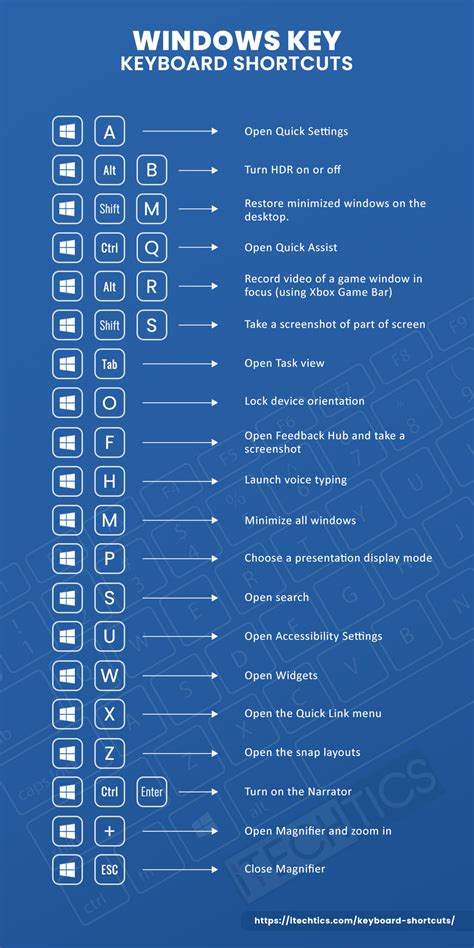
Pros & Cons
Windows 11 — Pros
- I like the refreshed UI: cleaner visuals, centered Start, rounded corners, and smoother animations.
- Snap Layouts and improved virtual desktops made multitasking easier in my daily workflows.
- Gaming benefits: DirectStorage and Auto HDR gave measurable improvements in supported titles.
- Modernized Settings and File Explorer updates (tabs) reduced my need for third-party tools.
- Better built-in security model on new hardware (TPM, VBS) made me feel more secure for online banking and work.
Windows 11 — Cons
- The taskbar is less flexible than Windows 10 — I missed moving it and some classic behaviors.
- Hardware requirements (TPM 2.0, Secure Boot) create upgrade friction for older PCs.
- Some legacy drivers and niche peripherals required waiting for vendor updates.
- Widgets and some UI choices felt inconsistent and occasionally redundant.
Windows 10 — Pros
- Stable, predictable behavior on older hardware and for legacy apps.
- More customization options for power users, right down to the taskbar placement.
- Wide driver compatibility and third-party tool ecosystem that I relied on.
- Familiar interface — minimal learning curve for long-time Windows users.
Windows 10 — Cons
- Design feels dated compared to Windows 11; less polished animations and visuals.
- Misses newer productivity and gaming features that Windows 11 introduces.
- End of official support means no new security updates past the support cutoff; I had to plan migration.
Direct comparison table
| Feature | Windows 11 (my experience) | Windows 10 (my experience) |
|---|---|---|
| User Interface | Modern, centered Start; rounded corners; cleaner defaults | Classic, more customizable; live tiles if you liked them |
| Multitasking | Snap Layouts & snap groups made arranging windows faster | Standard snapping; relied on third-party tools for advanced layouts |
| Gaming | DirectStorage & Auto HDR supported on newer hardware — noticeable gains | Solid performance but lacks DirectStorage advantages |
| Compatibility | Some legacy devices needed vendor driver updates | Broad driver support for older hardware and software |
| Security | Improved security baseline on modern hardware (TPM, VBS) | Good security historically, but no new fixes after end-of-support |
| Customization | Less flexible taskbar and some UI choices are locked down | More control over taskbar placement, context menus, and UI tweaks |
| Updates | Smoother, incremental feature updates; less disruptive | Regular cumulative updates; historically more disruptive updates |
Buying guide: which should you choose?
After testing both for months, here’s how I would advise different types of buyers based on real-world tradeoffs.
Shop the latest Electronics picks on Amazon.
Shop Amazon →If you are buying a new PC right now
Buy a machine with Windows 11. I noticed tangible benefits on modern hardware: better security by default, improved multitasking with Snap Layouts, and gaming improvements if you're a gamer. Windows 11 felt smarter about modern workflows and required less tinkering for a polished experience. If you value future-proofing and fewer security worries, Windows 11 is the sensible choice.
If you have an older laptop or desktop and care about compatibility
I recommend staying on Windows 10 only as a stopgap if you rely on specialized hardware or software that hasn't been updated for Windows 11. In my case, I kept an older notebook on Windows 10 until the scanner vendor released updated drivers. However, be mindful that Windows 10 no longer receives mainstream security updates, so plan a migration or isolate that device from sensitive tasks.
If you are a gamer
Choose Windows 11 if your hardware supports DirectStorage and Auto HDR — the shorter load times and improved visuals are real on supported titles. If you're using older titles or older GPUs, Windows 10 will still run them fine, but you may miss the newer optimizations.
If you're an enterprise or IT buyer
I found Windows 11 compelling for new device fleets due to its stronger security baseline. For rollouts, though, ensure your management tools and line-of-business applications are fully compatible. Test drivers on representative hardware first; my team staged upgrades before a full migration for that reason.

Practical checklist before switching to Windows 11
- Check hardware compatibility (TPM 2.0, UEFI Secure Boot, supported CPU family).
- Verify key peripherals have drivers available for Windows 11.
- Back up your system image or ensure you have recovery media.
- Test critical apps in a sandbox environment before migrating important machines.
- If you depend on specialized tools, contact the vendor for Windows 11 support timelines.
Conclusion
In my experience, Windows 11 is the direction Microsoft wanted: a cleaner, more modern OS that improves productivity and brings meaningful gaming and security upgrades on new hardware. I appreciated the refined UI, the snap improvements that genuinely changed how I work, and the security posture on new machines.
Windows 10 remains valuable for older hardware and legacy compatibility. If you rely on niche peripherals or enterprise software that hasn't been updated, Windows 10 gave me stability while I waited for vendors to catch up. But with Windows 10's support lifecycle over, I ultimately moved my daily driver to Windows 11 and felt rewarded by the smoother, more secure experience.
So, which should you buy? If you are buying new hardware today, I would choose Windows 11. If you’re holding onto older gear because it’s still functional and you need compatibility, keeping Windows 10 for a short, carefully managed period can make sense — but plan the upgrade path. In my hands-on testing, the upgrades and polish of Windows 11 made it the better long-term choice for most users, but only if your hardware and essential apps support it.